How can we help you?
Frequently Asked Questions
If you’ve lodged a project under the wrong funded scheme, you can’t change it directly to another scheme. However, you have options depending on the project’s status in the Data Warehouse Retrofit Portal:
Project in Draft : You can delete and relodge it under the correct scheme. To delete, open the project and select the three dots at the top right next to the project reference
Project In-progress : You can void and restart the project. Refer to the Amend Function guide for instructions here.
Project Completed : You can’t delete or void it. You’ll need to relodge under the correct scheme and inform the funder of the updated project references so they can update their records.
When lodging a Hybrid Heat Pump System, a Retrofit Coordinator (RC) must include both an Air/Ground Source Heat Pump measure/guarantee and a Boiler replacement measure/guarantee within the lodgement. This process ensures that all competency and consumer protection information for both measure types is captured, and that all existing requirements for these measures remain unchanged.
Non-compliance with this FAQ when lodging a hybrid system will result in measure/project non-compliance for both the lodging RC and the installing Registered Business.
Once logged into your Data Warehouse/ Retrofit Portal, click Account at the bottom of the page, and view the ‘Users’ tab.
From there, you can add a person(s) and assign permissions to individuals to manage certain aspects of your account directly.
Please note that you hold responsibility for updating and / or removing users. If you do not require other users to have access to your Retrofit Portal e.g., they have left the business, you have moved to a new employer then click the ‘Bin’ icon to remove them.
Assigned users with permissions for “Billing and Finance” within the Retrofit Portal, can download the Invoice & Transaction History, directly from the Retrofit Portal. Once logged into your Data Warehouse / Retrofit Portal, click Account at the bottom of the page, and then view the ‘Invoices’ tab.
You will be able to view monthly invoices generated by clicking the download icon on the right-hand side of the total amount.
Transaction History for the account can also be downloaded by click the 3 dots and selecting “Export Search Results” This will create a CSV file which you can found within the “Exports” and downloaded.
Invoices are generated once a month for the previous month. Changes to your business registration will not make retrospective changes to the invoices that have been generated. Invoices/reciepts generated by Stripe when topping up your account will go to the email address you have supplied.
All invoices & transaction history can be viewed and downloaded from your Retrofit Portal by any email assigned permisson for Billing & Finance. As a result, TrustMark will not resend invoices to email addresses.
The original email address assigned to the account will access any email generated notifications, so please ensure that this is correct and changes to employment status are updated immediately.
Details of where to locate this are in the ‘How do I access my VAT Invoices & Transaction History?’ FAQ. Please note, that ALL users that have been assigned permission for ‘Billing and Finance’ are able to view your Invoices and Transaction history. Therefore, please ensure that only appropriate persons are given permissions to view this data and changes are updated accordingly.
Within your Retrofit Portal Dashboard if you select ‘Account’ and then the ‘Notifications’ tab you can set a credit threshold amount and add an email to receive notifications when it falls below. You can also add an email to receive notifications from the Quality Assurance audit team regarding remediation.
Topping up your account and paying for Projects/lodgements is all done through Stripe™ in the Data Warehouse’s Retrofit Portal. You can even set a threshold limit and receive notifications when your account needs topping up. You can find out more information about Stripe™ by visiting here.
Once you have logged into the Data Warehouse’s Retrofit Portal, click Account at the bottom Left-hand side of dashboard, and select the ‘Top Up’ Tab.
You can select an amount to be added to the account, input your cards details and submit payment. This will then show on your transaction history.
Please note that any user assigned permission for ‘ Billing and Finance’ by you will be able to access this Tab.
As per the ECO4/GBIS convention document, your assessment is out of date if it exceeds 6 months from the assessment date to the date the project was created (or lodgement of the assessment in a created project) Conditions on that acceptance are:
There is no change from the stated condition in the original report
There is no change in tenancy
There is no material change to the property that invalidates the data within the assessment
ECO4 & GBIS only
Although the conventions 12-month rule does not apply to other government schemes outside of ECO4 and GBIS, you should still ensure your assessment is compliant and:
There is no change from the stated condition in the original report
There is no change in tenancy
There is no material change to the property that invalidates the data within the assessment
A re-visit to the property and re-assessment will be required. New evidence must be gathered, and this may result in a new project with updated XML files being created in the TrustMark’s Data Warehouse Retrofit Portal.
If you have received non-compliant feedback with regards to your assessment, you should always contact your Scheme Provider in the first instance.
DESNZ may, on occasion, commission an independent auditor to undertake audits of projects lodged in the TrustMark Data Warehouse. These audits are undertaken outside of TrustMark systems, but a copy of the report is stored in the Project in the Data Warehouse.
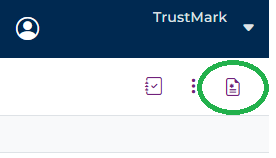
Where the audit findings have identified a non-compliance, a notification will be sent to the Retrofit Coordinator for awareness, but it is the responsibility of the Grant Recipient to oversee remediation and produce a declaration of remediation. The audit report is accessible via the Retrofit Portal Project page via the highlighted icon in the top right of the Project page, as shown below.

TrustMark is the Government Endorsed Quality Scheme that covers work a consumer chooses to have carried out in or around their home.
When a consumer chooses a TrustMark Registered Business, they are engaging with an organisation that has been thoroughly vetted to meet required standards and has made a commitment to good customer service.